
In a previous post, I walked through setting up a GoPhish server using an AWS EC2 instance. In this post we will use a gmail account to finish setting up our GoPhish Server. I wouldn’t recommend using a gmail account for anything other than proving to yourself that it is setup properly and testing.

The First time you navigate to the GoPhish login page, you will need to check your server to get the default password. It is randomly generated, so the only way to get it is to check the terminal.
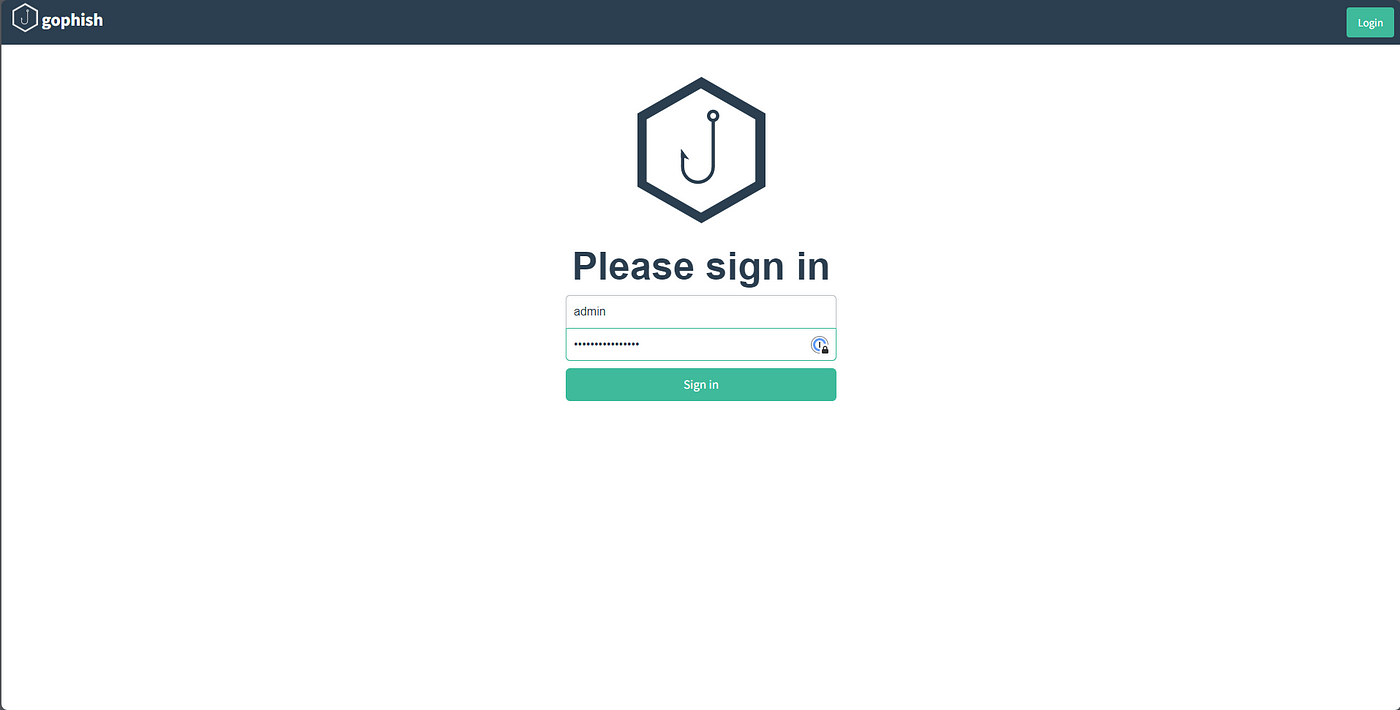
Armed with our login credentials lets go finish our GoPhish setup so that it can send emails. Make sure you put in the https or else it will send as an http request and not let you login. You’ll also receive a certificate error that you can ignore. Upon your first login, it’ll make you change the password. You can create a certificate so that you don’t get the certificate error, but for this exercise, we will stick with the self-signed certificate.
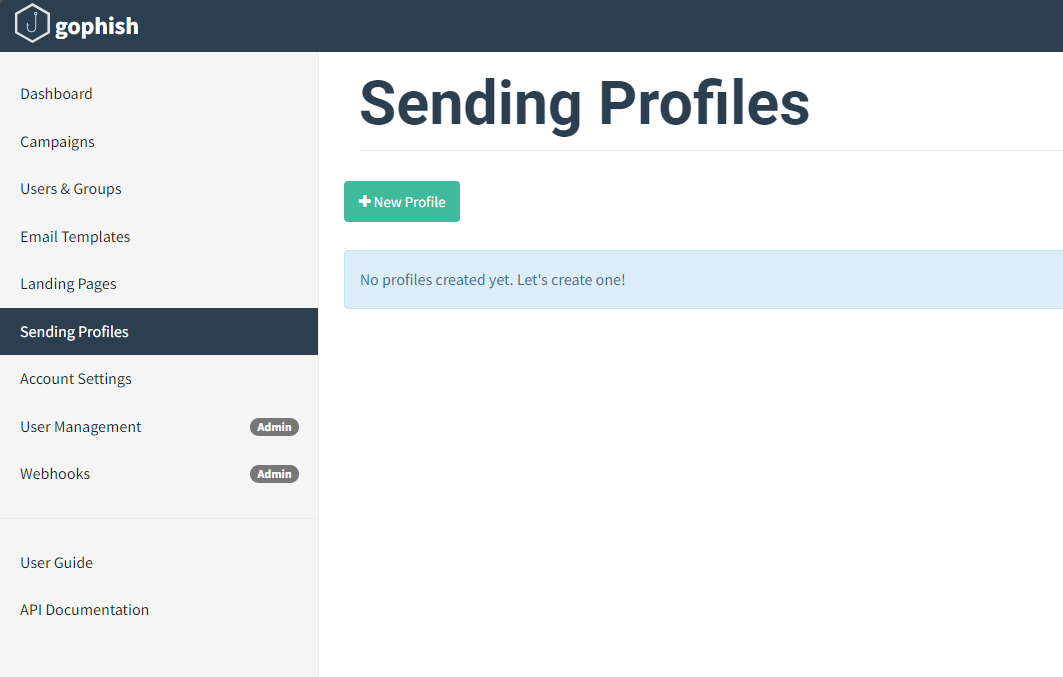
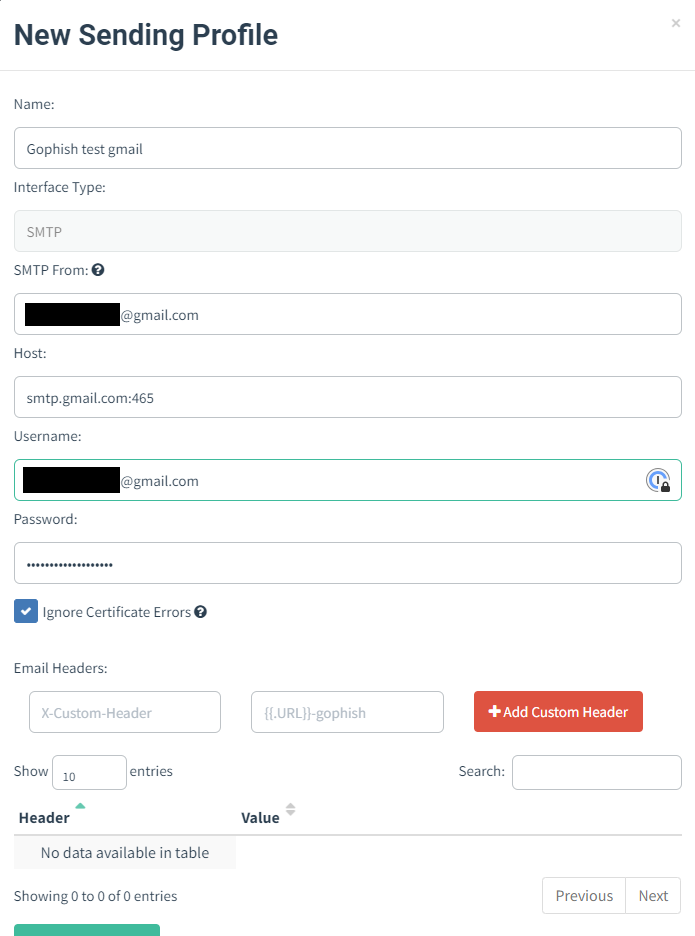
In order to send emails, we will need to create a sending profile. So, Select sending profiles on the left hand column, then select the new profile button.
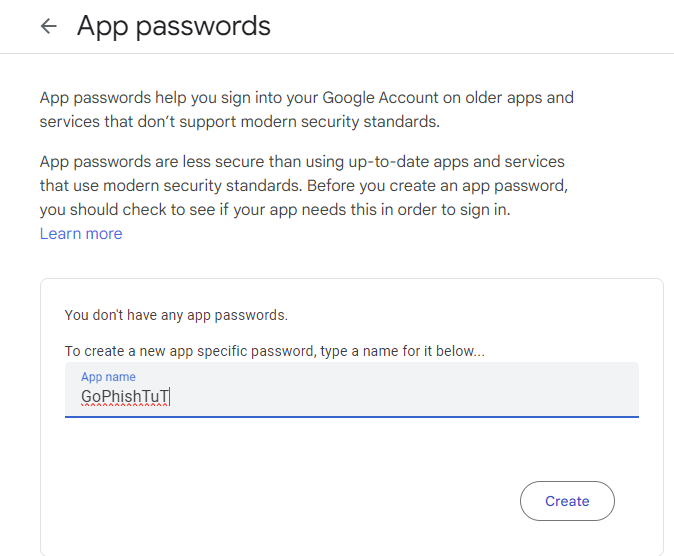
Since we will be using a gmail account, there is some additional setup you need to do with the gmail account you will be using. First you will need to enable 2FA on the google account. Then you will need to create an app password. To find App passwords in the Google Security settings, I had to search for it. Once there you will generate a password for GoPhish to use in order to send emails. One very important thing to remember is that you need to copy the password that is generated as once you close the screen you won’t be able to retrieve it again.
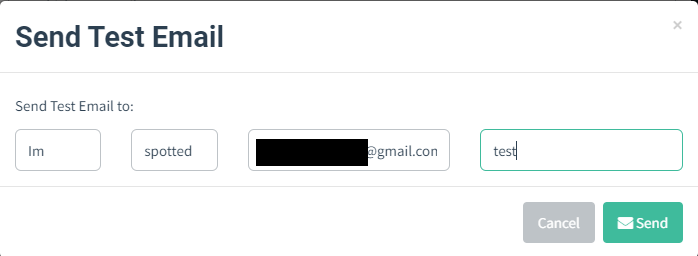

As you can see in the previous screenshots our test email was a success. We are now ready to start using our GoPhish server.
There is more that you will need to do in order to start using the server in a live environment. You still need to create an email template, and a page for people to interact with. This tool would be a great asset for a Red Team engagement as it offers a lot of flexibility in what your emails and web pages look like. If you set it up properly, the end user won’t even notice if the aren’t watching where the URL is going as it can forward the user to the legitimate site once they enter their credentials. With a little more setup you can even setup an evil GoPhish that can intercept tokens. I’ll do another writeup covering how easy it is to make your emails and pages look convincing. I hope you have learned something from this! Have a good day.
 IamSpotted: Adventures in Cybersecurity
Leave a comment